


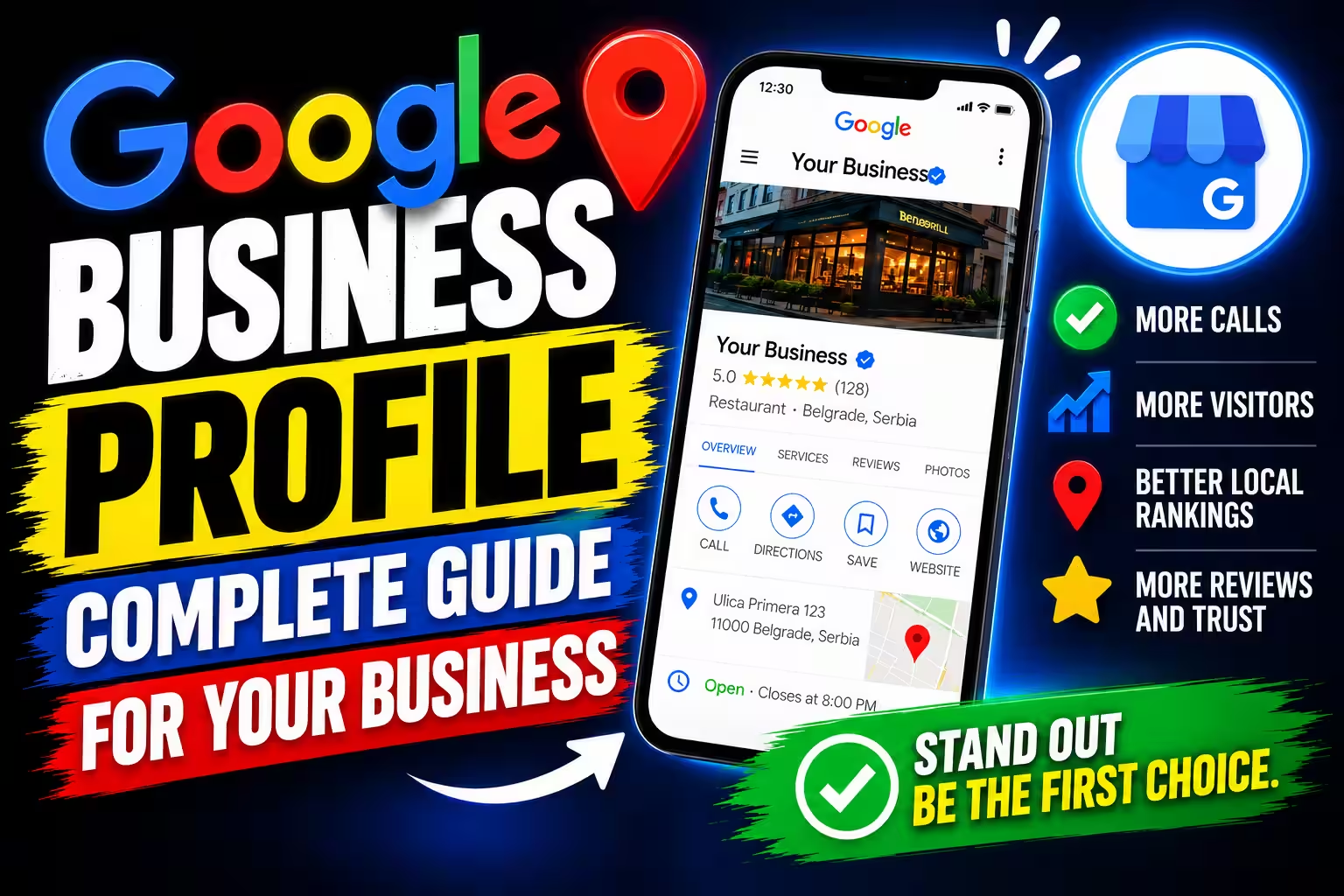
Google Business Profile Complete Guide

When someone searches for an electrician, dentist, or auto repair shop on Google, they may see several businesses offering the same service. Before calling one of them, they often check reviews, opening hours, photos, and location.
Google Business Profile lets you present your business directly in Google Search and Google Maps. Creating a profile is free, but before you start, you should check whether your business is eligible and what information you need to provide.
This guide covers the setup process, choosing a category, setting your location, and completing verification. It also explains what to check after registration, without repeating every detail covered in our more specific guides.
What is Google Business Profile?
Google Business Profile is a free business listing that lets you manage the information people see about your business on Google Search and Google Maps.
Depending on your business type and the features available, your profile can display:
- Business name and category
- Business address or service area
- Phone number, opening hours, and website
- Photos and business description
- Services, customer reviews, and replies
Not every business is eligible for a profile. In general, your business must have in-person contact with customers, either at your own location or at the customer's location.
For example, a dental office, hair salon, or plumber may qualify. A business that operates exclusively online and does not meet customers in person generally does not qualify.
Before you begin, check Google's eligibility guidelines for Business Profiles.
How to create a Google Business Profile
Before starting, prepare your real business name, the most appropriate category, a phone number, your address or service area, and your website address if you have one.
The process is easier when you first establish whether customers visit your business or you travel to them. That distinction affects how you should set up your location.
A note about the screenshots: The images in this guide show the interface as it appeared when they were created. Google sometimes changes page layouts, option names, and the order of steps. If your screen looks different, follow the current instructions shown during setup.
Step 1: Create or choose a Google account
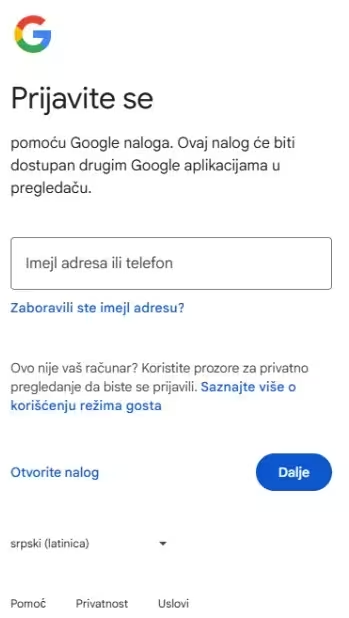
You need a Google account to manage your profile. If you already use Gmail, you can use that account. Otherwise, create a new one.
Choose an account you will be able to access in the long term. If an employee or agency needs to manage the profile later, you can grant them the appropriate access instead of sharing your password.
Step 2: Open the profile setup page
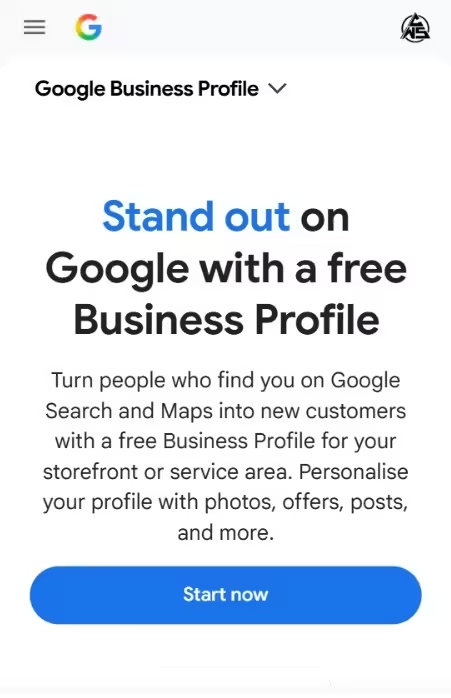
Go to business.google.com/add and follow the instructions to add your business.
If your business already appears on Google Maps, do not immediately create another profile. First, check whether you can claim the existing listing or request access to it. Duplicate profiles can create unnecessary problems.
Step 3: Enter your real business name
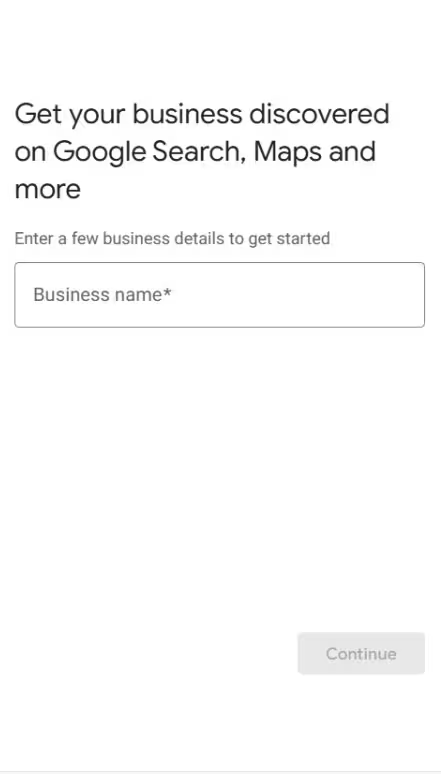
Use the name your business actually operates under and the name customers recognize. Do not add cities, keywords, services, or promotional phrases just to make the name longer.
For example, if your business is called "Markovic Electrical", do not rename it "Markovic Electrical Best Electrician 24/7" unless that is genuinely your business name.
Google requires your profile name to reflect your real-world business name. Adding unnecessary keywords can cause problems with your profile.
If Google suggests an existing business with the same name while you are entering yours, check whether it is your listing before continuing.
You can read more in Google's official guidelines for representing your business.
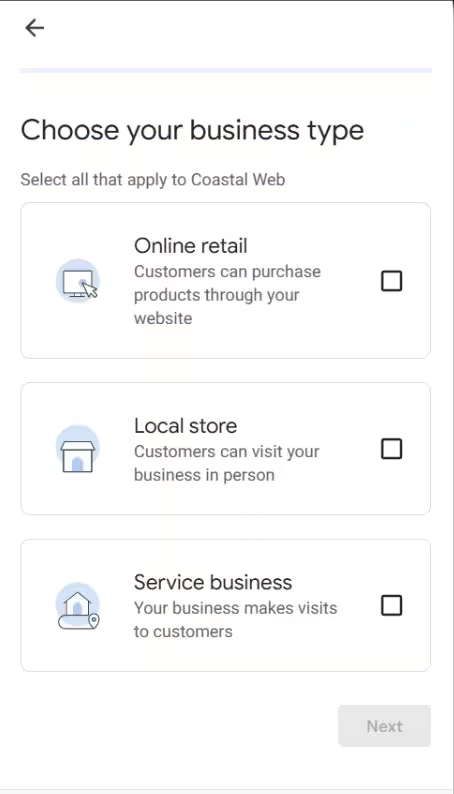
Step 4: Choose how your business operates
Google will ask you to describe how your business serves customers. The wording and order of the options may change, but the important thing is to choose what reflects your actual operations.
- A business customers visit: For example, a salon, dental office, or store with a suitable location and business signage.
- A service-area business: For example, an electrician, plumber, or contractor who travels to customers.
- A business that does both: Customers visit your location, and you also provide services at their locations.
Do not say that customers visit your address if you do not actually receive them there. If you work from home and travel to customers, set up your profile as a service-area business.
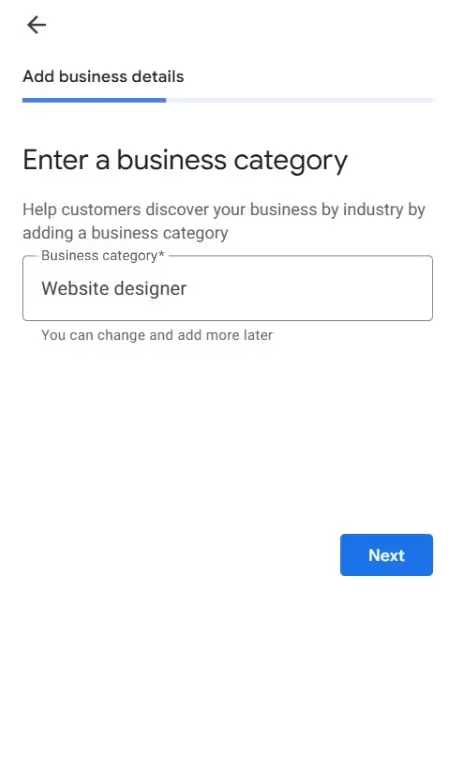
Step 5: Choose your primary category
Your primary category describes what your business mainly does. Choose the category that most accurately represents your main service, not the one you assume will generate the most visibility.
For example, if plumbing is your main business, choose the appropriate plumber category. If you run a dental practice, choose the category that describes your dental business.
You can add secondary categories later if they represent other services your business genuinely provides. Do not use them for services you do not offer.
Available categories and their names can vary by language and interface. Search the list of options and select the closest match rather than assuming a particular wording must be entered in a specific way.
For a more detailed explanation, read our guide on how to choose the right Google Business Profile category.
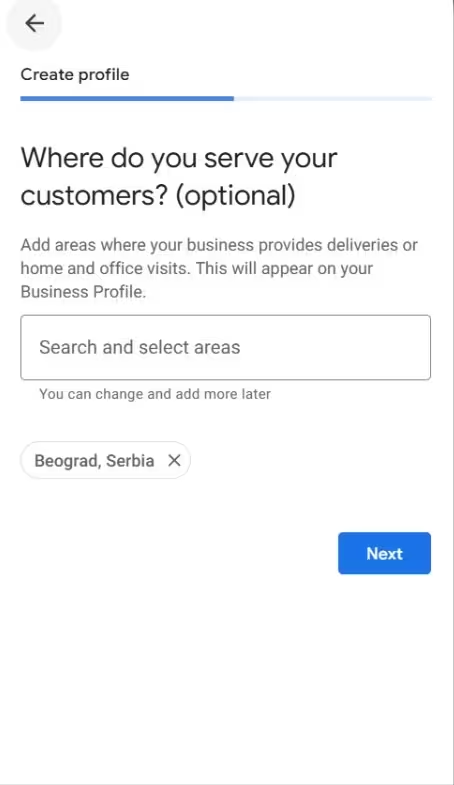
Step 6: Add your service areas
If you travel to customers, add the areas where you actually provide services. These may include cities, towns, or other areas available in Google's interface.
Do not list places where you do not work simply because you want your business to appear in those local search results. Your service area should reflect your real operations.
If customers visit your business but you also occasionally work at their locations, configure the profile to reflect both types of service.
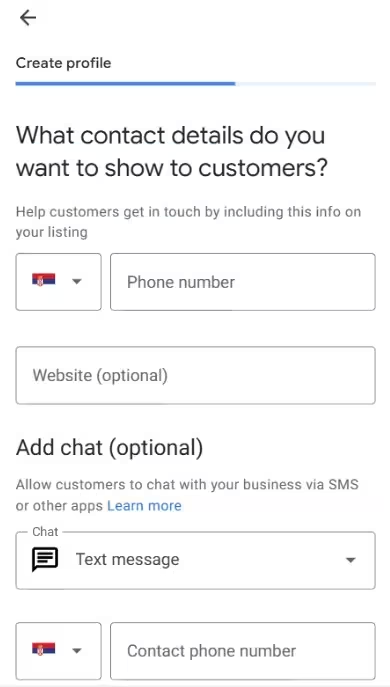
Step 7: Enter your contact information
Add a phone number customers can use to reach you. If you have a website, enter its address and make sure it leads to the correct page.
Do not use a number you no longer answer or a website that does not represent your business. Your contact details should be accurate and consistent with the information you publish elsewhere.
Step 8: Review additional options and notifications
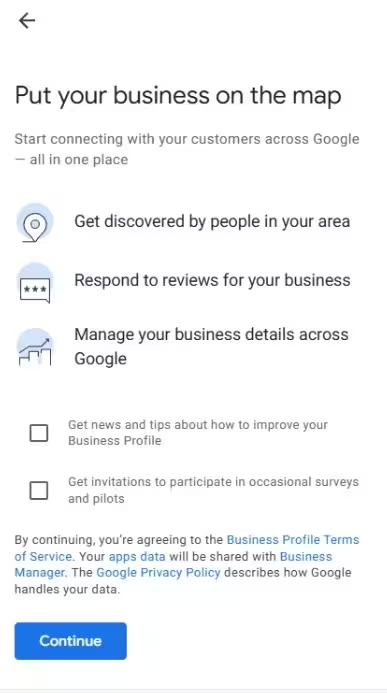
During setup, Google may offer additional options, notification settings, or promotional messages. Read what is presented and choose according to your needs.
These options are separate from your core business information. You do not need to accept every promotional offer to create a profile.
Step 9: Set your address correctly
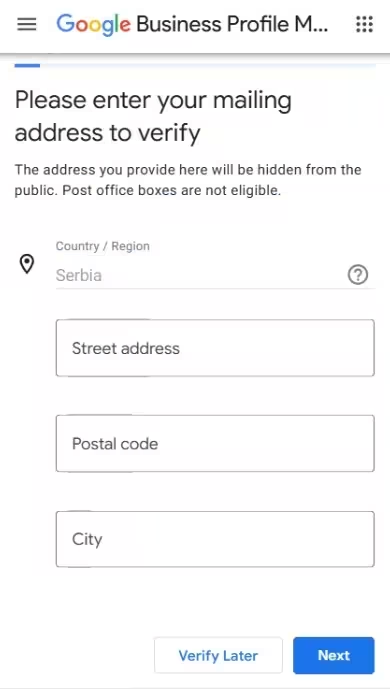
If customers visit your business premises, enter the correct address.
If you work at customers' locations and do not receive customers at your business address, do not display that address publicly. Google may still ask for an address to verify your business, but it does not necessarily have to appear on your public profile. Configure the listing to show your service area instead.
This distinction matters for contractors, repair technicians, and other businesses that work at customers' locations. Do not use a virtual office or a location where you do not actually operate as a substitute for your real business location.
See Google's instructions for managing your business address.
Step 10: Verify your profile
Google may require verification before you can fully manage your profile. Verification helps confirm that you are authorized to represent the business.
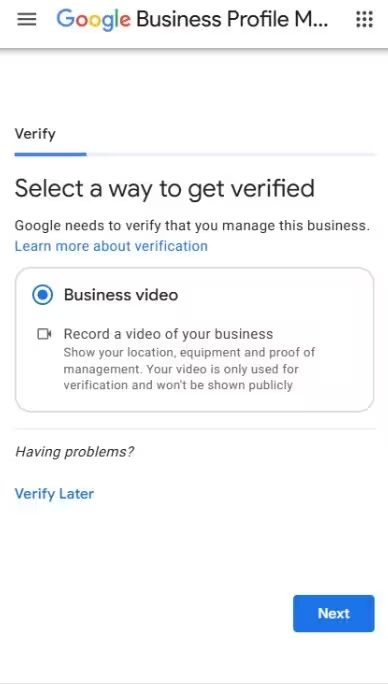
Google determines which verification methods are available for your particular profile. The options may depend on your business type, region, and other circumstances. Not every business follows the same process, and video verification is not always the only option.
Choose an available method and follow the instructions shown on your screen.
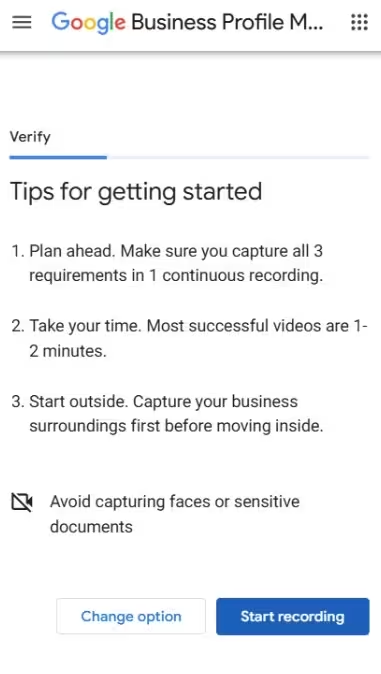
If Google asks for video verification
The video is recorded through the verification process on a mobile device. Before recording, check the requirements displayed for your profile.
Google says the video must be an original, continuous recording at least 30 seconds long. You cannot record it in advance, edit it, and submit it as a finished video.
What you need to show depends on how your business operates:
- A business with a physical location: Show the surrounding area and location, permanent business signage, and evidence that you manage the business.
- A service-area business: Show surroundings that help establish the location, the tools or equipment you use, and evidence that you genuinely carry out the work.
For example, a plumber might show their tools, equipment, and work vehicle, along with any other evidence Google requests. Do not show someone else's premises or signage that does not belong to your business.
Avoid recording personal information, document numbers, banking details, or other people's faces. If Google rejects your video, check the explanation in your profile before trying again.
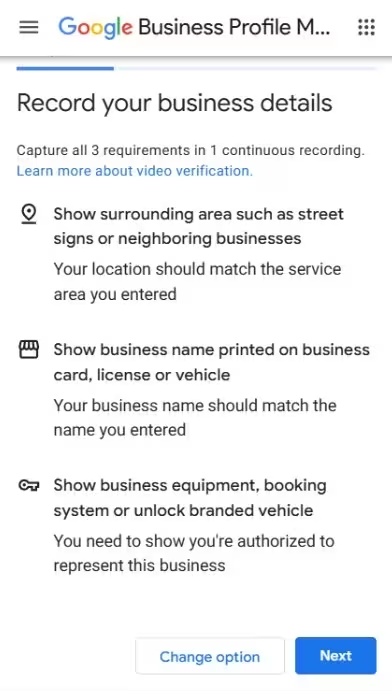
Review the requirements before you start recording. Plan how you will show the necessary evidence in one continuous video, and make sure each part is clear enough for Google to review.
If your business name, address, or other details do not match what you show in the video, verification may be rejected. Check the information first, then try again according to the explanation Google provides.
Step 11: Wait for the verification result
After submitting your verification, wait for Google to review it. Processing time depends on the method and the individual case. For video verification, Google says the review can take up to five business days.
If verification fails, do not immediately create another profile. Read the reason for rejection and correct any missing or inconsistent information. If necessary, try again using an available method.
For details about the process and available options, see Google's official verification guide.
Step 12: Complete your basic business information
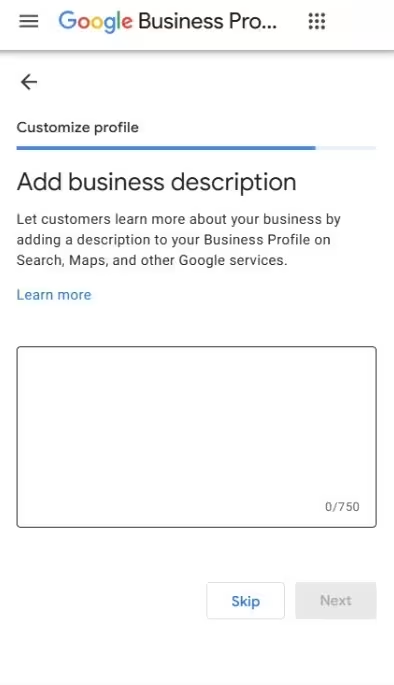
Once you can manage your profile, review any information that is still incomplete. This may include opening hours, your business description, contact details, and other options available for your category.
Use the description to explain the services you provide and what customers should know about your business. Be specific. Avoid keyword lists, promotional slogans, and offers that do not belong in this field.
Do not change your actual business name to include additional search terms. The name, category, and description serve different purposes, so each should be completed in the appropriate field.
Step 13: Add your first photos
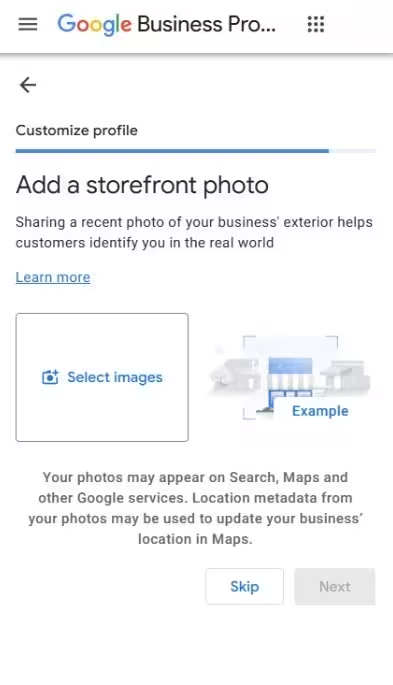
Upload a few real photos that help customers understand what you do. These might show your premises, team, equipment, products, or completed work.
If you provide services at customers' locations, photos of your actual work may be more useful than generic promotional images. You do not need a large gallery immediately, but the photos should represent your business rather than someone else's work.
For examples and practical advice, read our guide on which photos to add to Google Business Profile.
Step 14: Add the services you provide
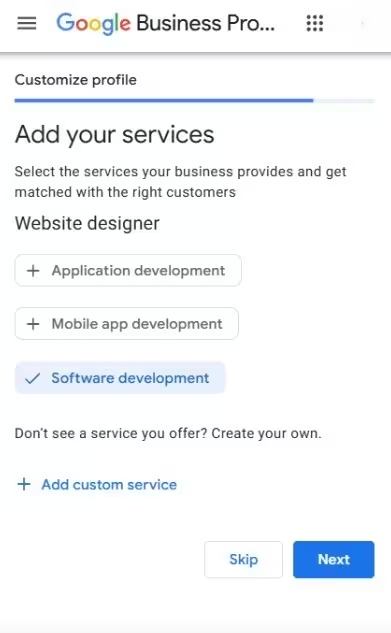
If Google offers a services section for your category, list the work you actually do. Where the available options allow it, use specific service names instead of one broad description.
For example, an electrician might list electrical rewiring, lighting installation, and other jobs they genuinely accept. Do not add a service you do not provide just because people often search for it.
For more detailed advice, see our guide to Google Business Profile optimization.
Step 15: Review your profile before finishing
Go through the profile one more time. Check that your business name, category, contact details, location, and opening hours are correct. Make sure the services and photos are relevant and that no important information is incomplete.
Your profile will not maintain itself. When your opening hours, phone number, or services change, update the relevant details. Respond thoughtfully to new reviews, and add photos or posts when you have something useful to share.
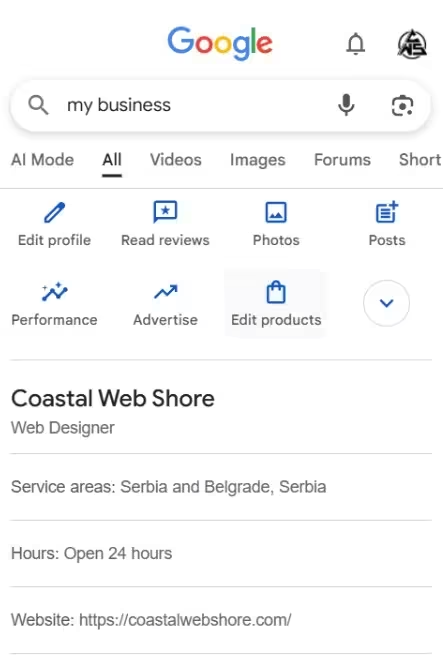
What to do after registration
Once the initial setup is complete, you do not need to keep changing your profile without a clear reason. First, make sure it is configured correctly. Then maintain it as your business changes.
These guides cover specific parts of the profile in more detail:
- How to optimize your Google Business Profile explains what to review and which changes are worth making.
- How to choose the right Google Business Profile category covers primary and secondary categories.
- Photos for Google Business Profile explains which images are useful to potential customers.
- How to get more Google reviews covers how to ask real customers for honest feedback.
- How to respond to Google reviews explains how to reply to both positive and negative reviews.
- Google Business Profile posts explains when posts are useful and what you can publish.
Do not treat these activities as a checklist you must complete every week. Accurate information, the right category, and useful details serve a clear purpose. Photos, reviews, and posts should reflect your actual business rather than being added just to make the profile look active.
Is Google Business Profile enough without a website?
Google Business Profile can show essential information about your business and help people call you, find your location, or read reviews. For some small businesses, it can be an important starting point for attracting customers.
A website serves a different purpose. It gives you room to explain your services in detail, show examples of your work, describe the areas you cover, and answer questions that a profile cannot fully address.
A profile and a website are not replacements for one another. If you have a website, link it to your profile and check that the basic information matches. If you need a website to present your services, see how we approach custom website development.
Frequently asked questions
Is Google Business Profile free?
Yes. Creating and using a profile is free. However, your business must meet Google's eligibility requirements to appear on Google Search and Maps.
Can I create a profile if I do not have a storefront?
Yes, if you provide in-person services at customers' locations and meet the other eligibility requirements. In that case, configure your listing as a service-area business and do not display your business address publicly if you do not receive customers there.
How long does verification take?
It depends on the verification method Google offers and your specific situation. For video verification, Google says the review can take up to five business days. Other methods may have different time frames.
Do I need a website?
A website is not required for every business that qualifies for Google Business Profile. However, it can provide more information about your services, completed work, and contact options. If you have one, link it to your profile and keep the information consistent.
Conclusion
Creating a Google Business Profile is not complicated, but it is important to set it up according to how your business actually operates. Pay particular attention to the category, location, contact details, and verification. Mistakes in these areas can cause problems that are not always easy to resolve later.
Once your profile is set up, keep the information accurate and add details that help people evaluate your business. No single setting guarantees the top position on Google Maps, but accurate information and a clear presentation of your services give your business a solid foundation on Google.